
Samsung Smart Switch Mobile
Samsung Electronics Co., Ltd.Tools
3.922.90K Reviews
- Version
- 3.7.74.7
- Installs
- 1.00B
- Age Rating
- Everyone
Screenshots
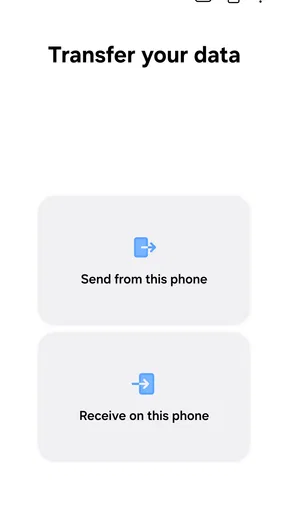
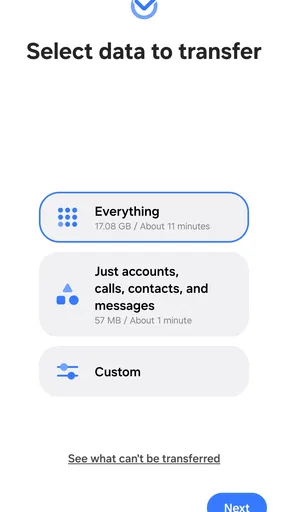
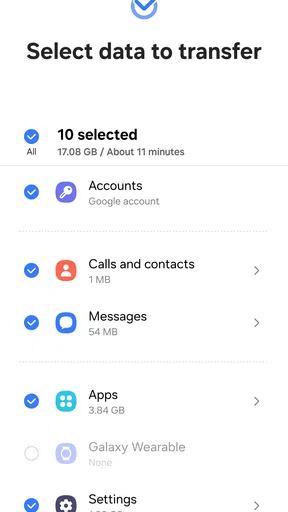
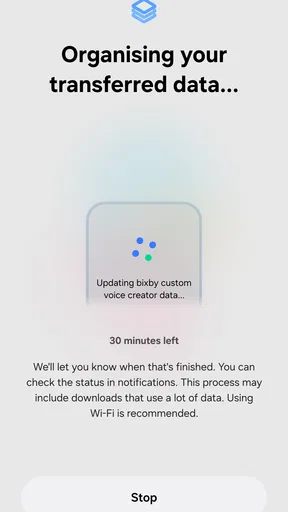
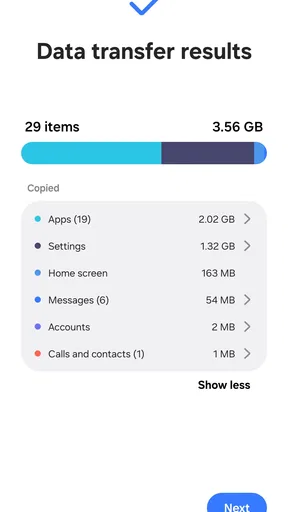
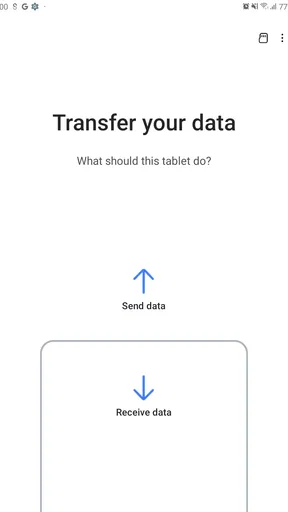
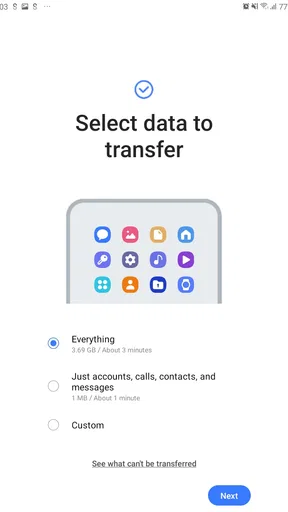
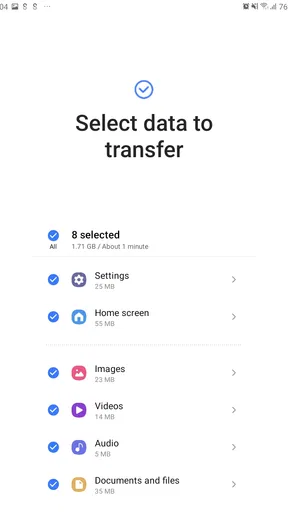
Our Review of Samsung Smart Switch Mobile
 Analysis by Appyee
If you've ever switched phones and felt like you were lost in a sea of settings, contacts, and data transfers, then Samsung Smart Switch Mobile might just be the life raft you need. This nifty app promises an easy transition from your old device to a shiny new Samsung phone. But does it deliver on the hype? I took it for a spin to find out.
Why the First-Week Appeal Is Real
A phone change is one of the rare moments when a transfer tool can make an immediate difference. You may need your contacts, photos, messages, and familiar settings in place before the day gets busy again. Smart Switch gives that handover a clear starting point instead of leaving you to rebuild everything by memory. Samsung Electronics Co., Ltd. makes this free Tools app, and its scale is reassuring: it has more than a billion installs and an average rating of 3.8 from around 514,000 ratings.
The practical benefit is not that every detail magically follows you. It is that you can move a substantial set of personal content in one deliberate session, then check what still needs attention. I would treat the first transfer as a guided setup, not a perfect clone. That mindset makes the process less frustrating, especially when you are moving between different kinds of phones.
Getting Started
Diving into the world of Samsung Smart Switch Mobile is pretty straightforward. After downloading the app, you're greeted with a clean, simple interface that guides you through the transfer process. Whether you're coming from an Android or iOS device, Smart Switch has you covered. You can transfer your data wirelessly, via USB cable, or even from a PC. It's like having a digital Swiss Army knife for phone transfers!
For a realistic everyday example, imagine replacing a phone after work and wanting to keep your commute routine intact. I would start the transfer at home, while both devices are charged and I have time to follow the prompts, rather than trying to do it in a taxi or between appointments. Before beginning, I would also make a short list of anything I rely on daily—such as a banking app, work sign-in, or transit pass—so I can check those individually afterward. That small bit of preparation is more useful than expecting a transfer tool to resolve every app’s own login and security steps.
Smart Switch is most compelling when the destination is a Samsung phone and you want a broad handover of everyday phone content. If your aim is simply to copy a few photos, a cloud account or a computer may be quicker and less involved. If you are setting up a non-Samsung phone, the app is not the natural long-term choice; use the migration option designed for that device instead. Its value is concentrated around the move itself, rather than ongoing syncing between phones.
Wireless vs. Wired Transfers
One of the first decisions you'll make is how to transfer your data. If you opt for the wireless route, make sure both devices are connected to a stable Wi-Fi network. The app walks you through each step, and in no time, your contacts, messages, photos, and even apps start migrating to their new home. For those who prefer the tried-and-true method of using a cable, Smart Switch supports that too. Just connect your devices with a USB cable, and the app takes care of the rest. It’s a breeze!
The choice is less about which option is universally best and more about the conditions you have. Wireless avoids hunting for the right cable, but it depends on a steady connection and is less convenient if you need to keep both phones available. A cable can make the setup feel more direct, though you need a compatible connection and may have to work around ports or adapters. I would choose the method that is easiest to keep uninterrupted, not the one that sounds fastest in theory.
A useful, easily overlooked habit is to avoid starting with both phones nearly empty on battery or while you are relying on one for navigation, work, or a two-factor sign-in. Keep the old phone nearby until you have checked the important items on the new one. The transfer finishing is not the same as confirming that every essential account is ready. This quick verification step can prevent a small gap—like a missing conversation or an app that needs reauthentication—from becoming a problem later.
Compatibility and Features
Smart Switch isn’t just for moving files. It also helps with syncing your settings, alarms, and even your home screen layout. The app supports a wide range of devices, ensuring a seamless transfer whether you're jumping from an older Samsung model or another Android device. And if you’re coming from iOS, Smart Switch does an admirable job of bringing over your essentials without a hitch. However, some apps might need to be downloaded separately from the Play Store.
That distinction matters when you are deciding how much setup time to reserve. Contacts and photos are easy to notice, but a home screen arrangement, alarm schedule, or familiar settings can be what makes the new phone feel usable on the first morning. I would still inspect those details rather than assuming that “transfer complete” means the new device is identical. Different platforms organize features differently, and an app may be present without its previous account state or locally stored information.
For a switch from iPhone, think of Smart Switch as a way to bring across supported essentials, not as a promise that iOS and Android behave alike afterward. Some apps have no direct equivalent, while others require a fresh download and sign-in. If your main concern is a particular chat history, password manager, authenticator, or work profile, check that service’s own move or recovery process before wiping or trading in the old device. This is a sensible safeguard, not a criticism of the transfer tool: those services often control their own data and security.
Performance and Ease of Use
Using Smart Switch felt refreshingly easy. The app's interface is intuitive, and the transfer speed was impressive. During my test, a wireless transfer of around 10GB of data took less than an hour. Not too shabby! It's worth noting that the app doesn’t transfer everything—some app data and settings might need manual setup. But for the most part, it does a fantastic job of getting your new phone up and running with minimal fuss.
The strongest comparison is with the usual alternatives: a phone’s built-in setup migration, cloud restoration, or manually copying files. A built-in migration flow may be simpler if you are staying within the same phone ecosystem and only need its standard route. Cloud restore is convenient when your backup is current and your connection is dependable, but it can mean waiting for content to reappear and signing in again. Manual copying gives you control over selected files, yet it does not recreate the broader feel of a phone setup. Smart Switch earns its place when you want one guided Samsung-oriented move across several kinds of personal content.
There is a trade-off in that breadth. Moving more than photos and contacts can take planning, and you still need to review the result. For a phone with years of accumulated files, I would think about whether everything needs to come over at once. A selective transfer can leave clutter behind and make it easier to find what matters, while keeping the old device available gives you a fallback for anything you missed. This is a practical way to make the new phone feel fresh without turning the migration into an all-or-nothing decision.
Living With It After the Switch
Smart Switch is a tool I would keep in mind rather than open every week. Its recurring value comes from being available for a future phone change, not from becoming part of a daily routine. Once the move is done, the maintenance burden is light: keep the app available if you expect to use it again, and remember that the transfer process is only one part of preparing a replacement phone. You will still need to review accounts, app access, and any device-specific settings that matter to you.
For someone who changes phones occasionally, that makes the app easy to justify without demanding much attention. It is free, rated for Everyone, and its current version is 3.7.71.16; it requires Android 6.0 or later. It has been available since April 17, 2013, and has around 22,000 written reviews. Those figures suggest a long-established utility, though popularity alone cannot guarantee a smooth result on every individual device or transfer.
There are a few sources of fatigue to be honest about. The process can feel like overkill if you only have a handful of files to move, and it can disappoint if you expect app data, platform-specific features, or every sign-in state to arrive unchanged. A large transfer also asks you to set aside time and keep the two devices accessible. If you are not moving to a Samsung phone, or you prefer to rebuild your setup deliberately, the destination phone’s own setup flow or a focused file-copy method may suit you better.
If you cannot find the app download when preparing a Samsung device, you can open Smart Switch from the device’s Settings menu. I would still plan the move before the old phone is unavailable: check which data matters most, keep the source device intact until you have verified the essentials, and handle sensitive apps through their own recovery steps. Those habits are more dependable than relying on any single transfer session to cover every edge case.
Final Thoughts
At the end of the day, Samsung Smart Switch Mobile does exactly what it promises: it makes switching to a new phone less of a headache. With its user-friendly design and flexible transfer options, it's a tool that can save you time and frustration. If you're making the leap to a new Samsung device, this app is a must-have for ensuring that your data comes along for the ride. So, go ahead and dive in—your new phone awaits!
My longer-term verdict is that it earns a place in the phone-change toolbox, but not as a permanent daily companion. I would recommend it to someone moving to Samsung who wants a guided way to carry familiar content across and is willing to check the result afterward. I would skip it for a tiny one-off file transfer, or when a specific app’s own migration process is the important part. Used with realistic expectations and a little preparation, it can take much of the friction out of a phone change without pretending that two different devices are interchangeable.
Privacy and Permissions
See what permissions an app requests and how it handles your data.
- Device & app history
- retrieve running apps, read sensitive log data, read your Web bookmarks and history
- Identity
- find accounts on the device, read your own contact card, modify your own contact card
- Calendar
- read calendar events plus confidential information, add or modify calendar events and send email to guests without owners' knowledge
- Contacts
- find accounts on the device, read your contacts, modify your contacts
- Location
- precise location (GPS and network-based)
- SMS
- read your text messages (SMS or MMS), edit your text messages (SMS or MMS)
- Phone
- read call log, read phone status and identity, write call log
- Photos/Media/Files
- read the contents of your USB storage, modify or delete the contents of your USB storage
- Storage
- read the contents of your USB storage, modify or delete the contents of your USB storage
- Camera
- take pictures and videos
- Wi-Fi connection information
- view Wi-Fi connections
- Device ID & call information
- read phone status and identity
- Other
- view network connections, pair with Bluetooth devices, access Bluetooth settings, change network connectivity, connect and disconnect from Wi-Fi, delete all app cache data, measure app storage space, full network access, control Near Field Communication, read sync settings, run at startup, reorder running apps, set wallpaper, control vibration, prevent device from sleeping, modify system settings
How Samsung Smart Switch Mobile Compares
Full ComparisonChoose SHAREit for broad, offline sharing, Files by Google for everyday Android storage management, or Smart Switch for moving data to a Samsung phone.
| App | Developer | Rating | Price |
|---|---|---|---|
 SHAREit: Transfer, Share Files | Smart Media4U Technology Pte.Ltd. | 4.3 | Free |
 Files by Google | Google LLC | 4.5 | Free |
 Samsung Smart Switch MobileThis App | Samsung Electronics Co., Ltd. | 3.9 | Free |
Verdict
Strengths of Samsung Smart Switch Mobile
- Seamless data transfer between devices.
- User-friendly interface for easy navigation.
- Supports a wide range of file types.
- Compatible with Android and iOS devices.
- No need for cables or external storage.
Limitations of Samsung Smart Switch Mobile
- Requires both devices to be Samsung.
- Limited features without internet access.
- Occasional connectivity issues reported.
- May not transfer app-specific data.
- Lacks advanced customization options.
Other Releases by Samsung Electronics Co., Ltd.
View All
Samsung Calendar
Productivity4.1

Samsung Browser
Communication3.6

Samsung Music
Music & Audio3.8

SmartThings
Lifestyle4.6
Similar Picks in This Category
View All
Google LLC4.0

Gboard - the Google Keyboard
Google LLC4.5

Google Play services
Google LLC4.3

Google Play Store
Google LLC4.9

Files by Google
Google LLC4.5

SHAREit: Transfer, Share Files
Smart Media4U Technology Pte.Ltd.4.3
You May Also Like
View All


Frequently Asked Questions
What is Samsung Smart Switch Mobile, and how does it work?
Samsung Smart Switch Mobile is an app designed to help users transfer data from their old device to a new Samsung smartphone. It supports the transfer of various data types, including contacts, messages, photos, and apps. The app works by establishing a connection between the devices via Wi-Fi, USB cable, or using a computer backup.
Is Samsung Smart Switch Mobile compatible with all devices?
Samsung Smart Switch Mobile is primarily compatible with Samsung devices but also supports transfers from Android, iOS, and Windows devices. However, certain features might not be available for non-Samsung devices, and the transfer process can vary depending on the operating system of the source device.
What data can be transferred using Samsung Smart Switch Mobile?
With Samsung Smart Switch Mobile, users can transfer a wide range of data, including contacts, call logs, messages, photos, videos, apps, and app data. However, some DRM-protected content and certain app data might not be transferable. Always check the compatibility of specific data types before proceeding with the transfer.
How secure is the data transfer process with Samsung Smart Switch Mobile?
Samsung Smart Switch Mobile ensures a secure data transfer process by using encryption during the transfer. The app does not store any data on its servers, and all data is transferred directly between the devices or via a secure backup on a computer. It's crucial to ensure both devices are trusted and secure during the process.
Are there any costs associated with using Samsung Smart Switch Mobile?
Samsung Smart Switch Mobile is a free application provided by Samsung. There are no charges for downloading or using the app to transfer data between devices. However, depending on your data plan, using Wi-Fi or mobile data for the transfer might incur charges from your service provider. Always check your data plan to avoid unexpected costs.
